
Storage Insights
The Storage Insights pages support:
- Amazon S3
- Amazon EBS
- Azure Blob Storage
- Google Cloud Storage
Amazon EBS
Storage Visibility Summary
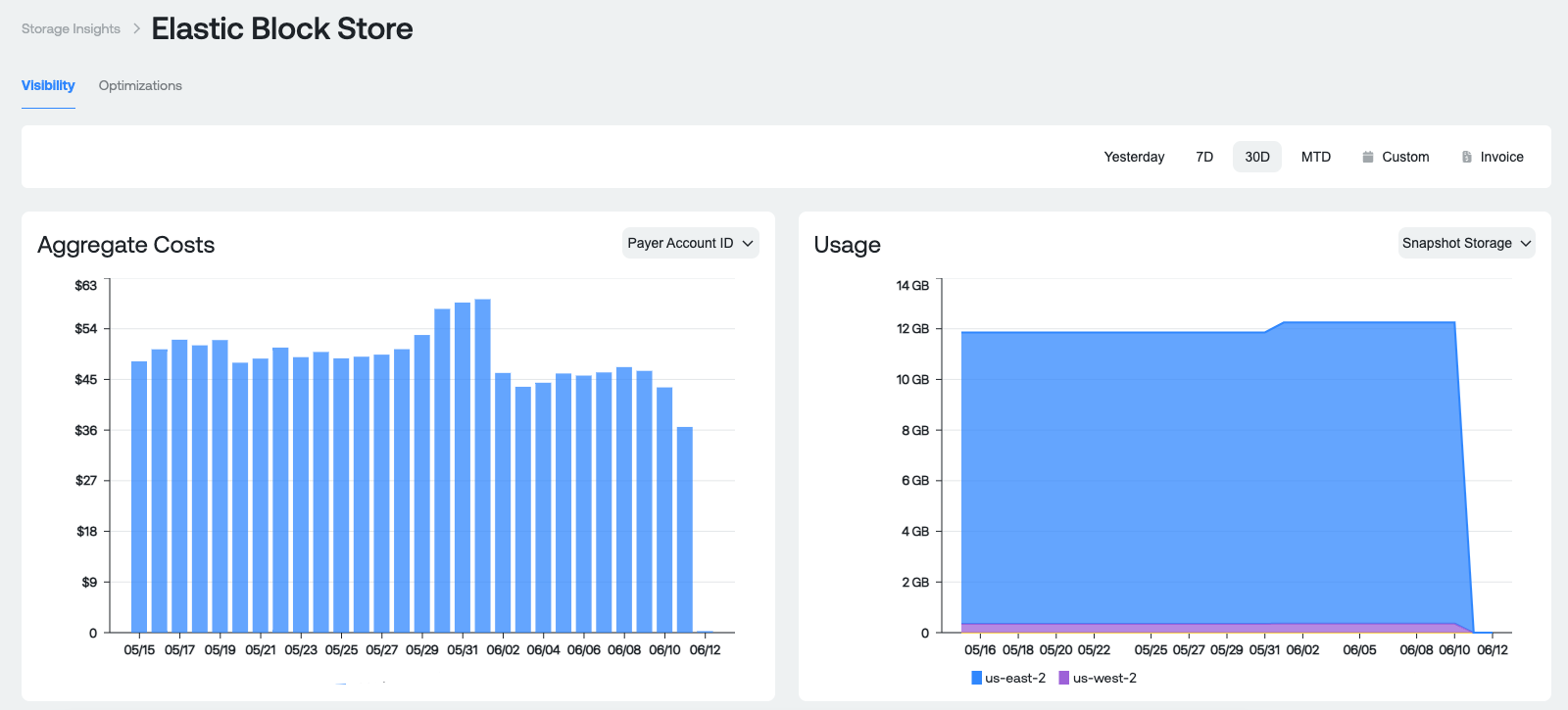
Purpose: This section is designed to give you a high level overview of what you are spending on EBS storage volumes as well as snapshots
Aggregate Costs Parameters:
- Payer Account ID: This is the sum of your daily costs for EBS rolled up at the Master Payer Account level.
- Storage Media: This is the sum of your daily costs for EBS rolled up by storage type such as SSD-backed.
- Region: This is the sum of your daily costs for EBS rolled up per Region such as us-east-2, us-west-2, etc.
Usage Parameters:
- Volume Storage: Sum of GB being used per Region.
- IOPS: Sum of the volume Read/Write operations per Region.
- Throughput: Sum of volume throughput per Region.
- Read/Write: Sum of volume Read/Write bytes per Region.
- Snapshot Storage: Sum of Snapshot GB's being used per Region.
Storage Visibility table summary
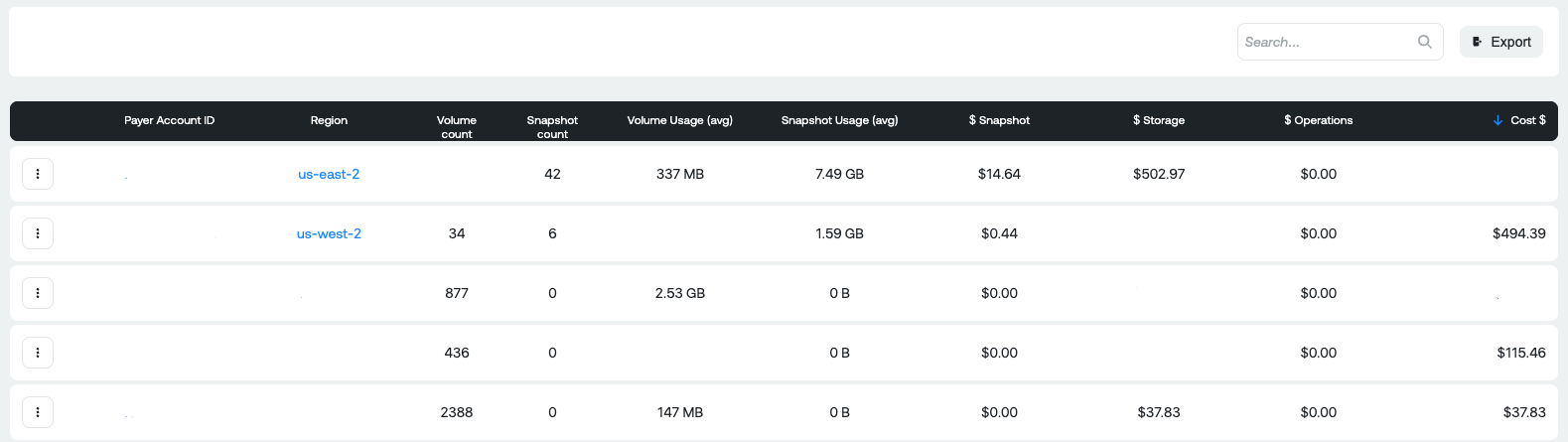
Table Columns:
- Payer Account ID: Master Payer Account that the EBS storage usage is rolled up to
- Region: Region that the EBS storage usage is rolled up to
- Volume Count: Number of unique EBS volumes identified per region
- Snapshot Count: Number of unique EBS snapshots identified per region
- Volume Usage (avg): The average usage of EBS volumes in the region (Total EBS storage / # of volumes)
- Snapshots Usage (avg): The average usage of EBS snapshots in the region (Total EBS snapshot storage / # of volumes)
- $ Snapshot: The average cost per snapshot (Total EBS snapshot cost / # of snapshots)
- $ Storage: The average cost per per storage volume (Total EBS volumes cost / # of volumes)
- $ Operations: The average cost of Operations (R/W)
- $ Cost: The average total cost of Snapshots AND Storage
Details:
By clicking the ellipsis (3 dots) next to any row in the table you can view the relevant details per volume/snapshot and export the data to CSV. This allows you to do additional, in-depth analysis related to specific volumes or snapshots of interest.

Details table columns:
- Volume Name: Resource ID for volume or snapshot
- Linked Account ID: Linked account where the volume/snapshot was used
- Type: Type of storage volume such as SSD, General Purpose, etc
- Storage Bytes: Amount of storage used
- Read (Seconds): Amount of Reads per second used
- Write (Seconds): Amount of writes per second used
- Read IOPS
- Write OPS
- Volume Size: total size of EBS volume
- Throughput ByteS: Amount of throughput bytes used
- $ Storage: Cost of volume/snapshot
- $ Operations: Cost of operations
- $ Total: Total cost of Storage and Operations
Storage Optimization Summary
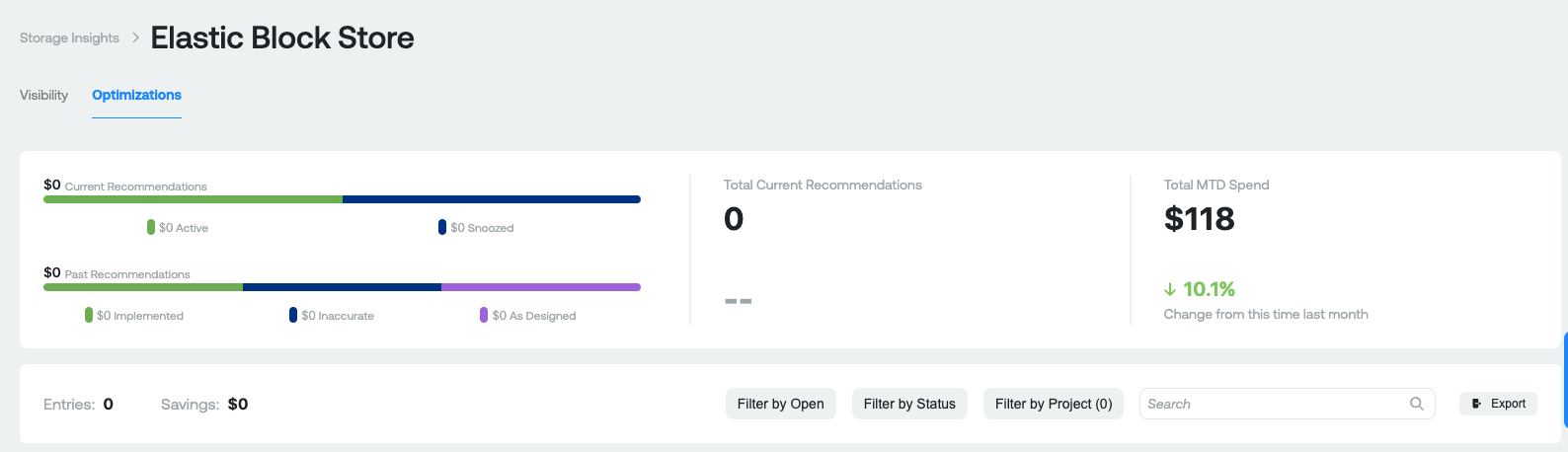
Purpose: To provide a high level overview of your EBS volume recommendations for cost savings.
Optimizations parameters:
- Current Recommendations: Total amount of savings available
- Past Recommendations: Total amount of past savings available
- Total Current Recommendations: Total number of available recommendations
- Total MTD Spend: Total Month-to-Date spend in AWS EBS
- Change from this time last month: Comparison of your previous Month-to-Date spend vs Current-to-Date spend in AWS EBS.
Google Cloud Storage
Cloud Storage Visibility Summary
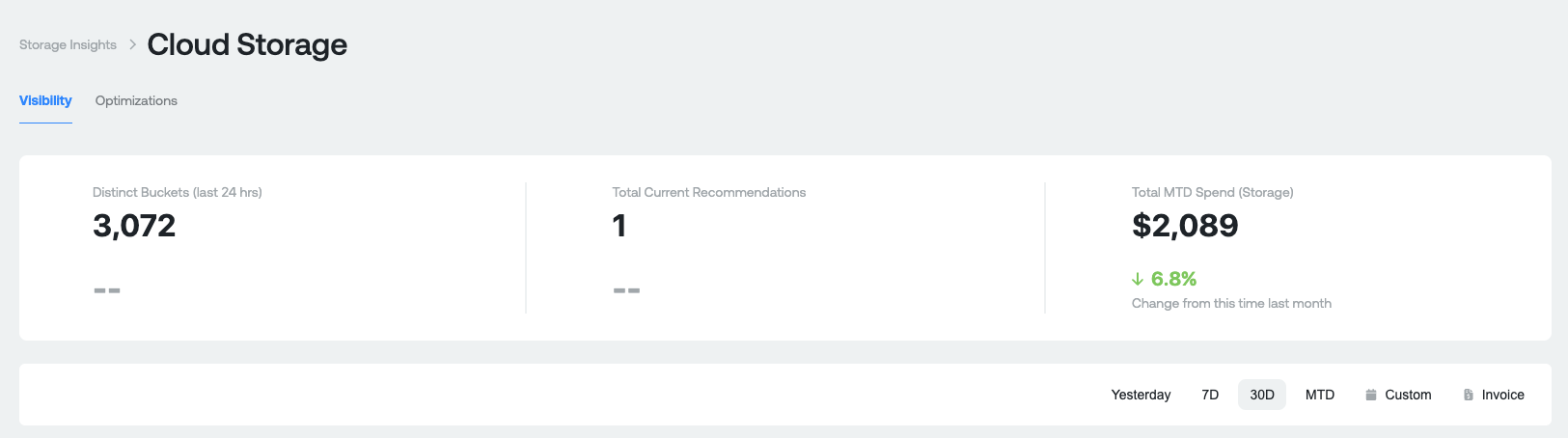
Purpose: This section is designed to give you a high level overview of what you're spending on GCP Cloud Storage today
Measures:
- Distinct Buckets: Total number of unique Cloud Storage buckets during the selected time period
- Total Current Recommendations: Total number of optimization recommendations
- Total MTD Spend (Storage): Total Cloud Storage spend this month to-date. Percentage represents the increase or decrease comparing this month to-date vs last month to-date.
Cost and Usage Graphs
Aggregate Costs Graph
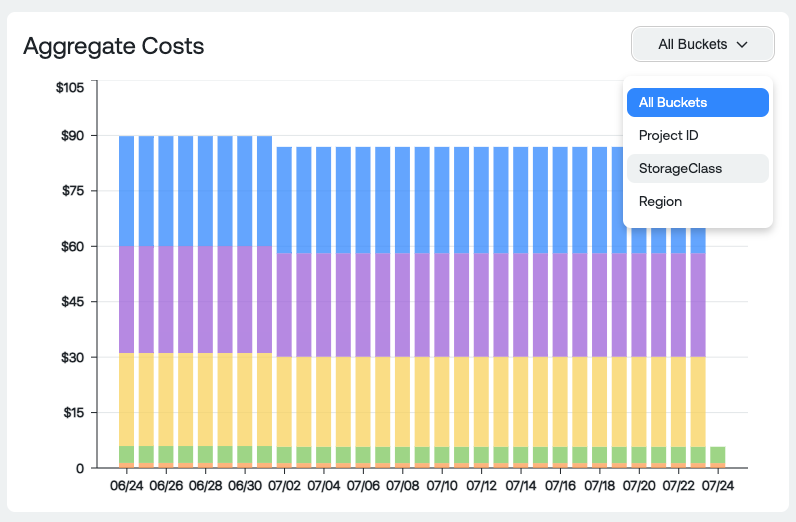
Dimension Groupings:
- All Buckets: Cost grouped by distinct bucket name
- Project ID: Cost grouped by Project ID
- Storage Class: Cost grouped by Storage Class (Coldline, Archive, Standard, etc)
- Region: Cost grouped by the GCP region the Cloud Storage is used in
Usage Graph
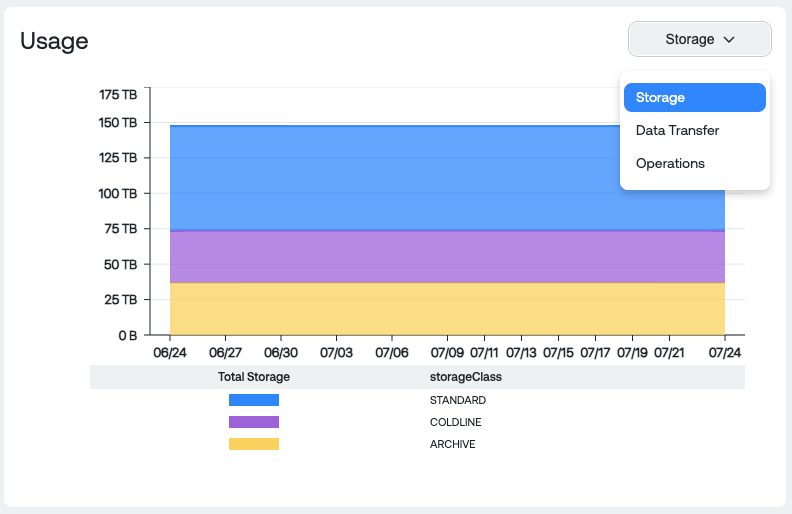
Dimension Groupings:
- Storage: Amount of storage used in GB/TB grouped by Storage Class
- Data Transfer: Ingress and Egress traffic grouped by region
- Operations: Total amount of operations occurring in all buckets (Read Object, Write Object, List Object, etc)
Buckets Table

Measures:
- Project: Project that the buckets are running in
- Region: Region that the buckets are running in for the project
- Buckets: Total unique buckets
- Storage: Cost of Storage stored
- Processing: Cost of Processing operations
- Network: Cost of network traffic
- Other: Any cost generated not associated with Storage, Processing or Network
- Ingress: Total amount of ingress traffic across all buckets in the project and region in B/GB/TB
- Egress: Total amount of egress traffic across all buckets in the project and region in B/GB/TB
- Operations: Total number of unique operations across all buckets in the project and region
- Recommendations: Total number of recommendations for optimization
View Buckets Report
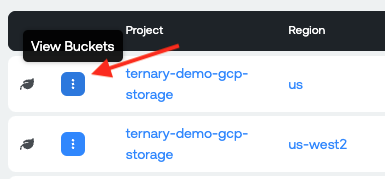
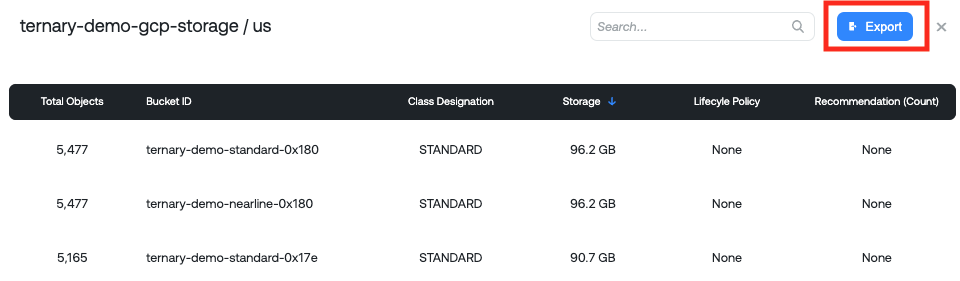
View Buckets table
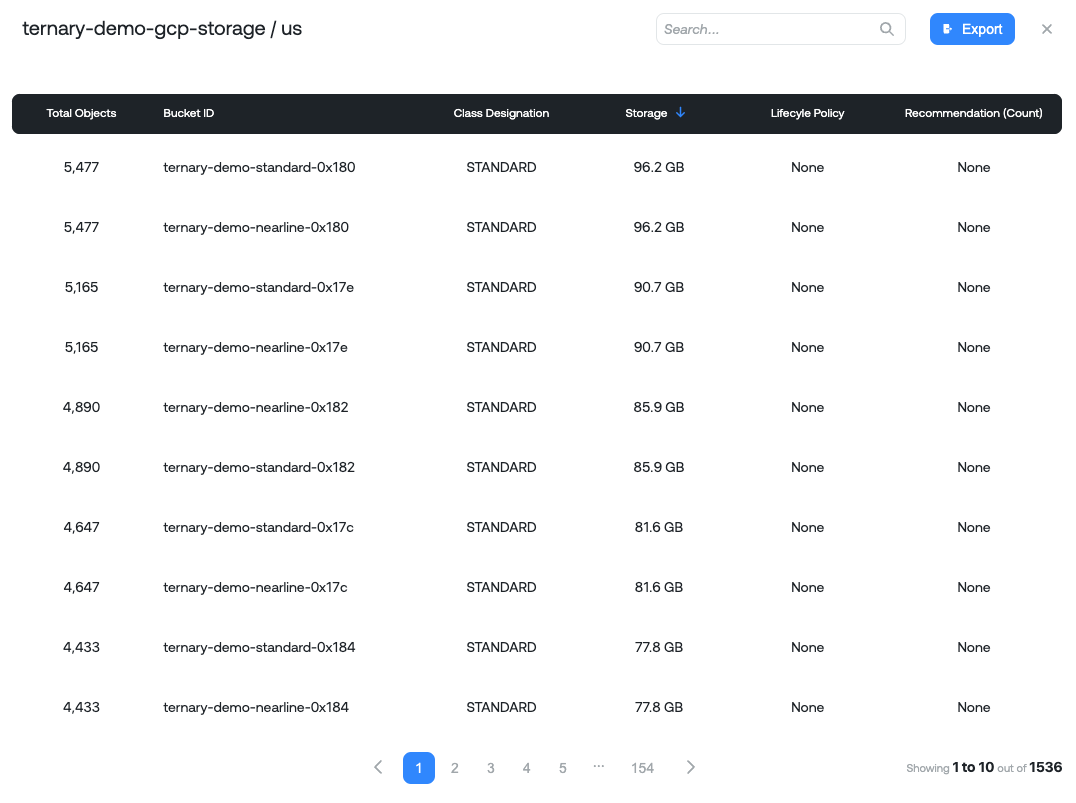
Measures:
- Total Objects: Total number of unique objects in the bucket
- Bucket ID: Unique Bucket ID
- Class Designation: Type of storage (Archive, Standard, Coldline, etc)
- Storage: Total amount of storage used in B/GB/TB
- Lifecycle Policy: Lifecycle policy applied and associated details of lifecycle policy
- Recommendation: Associated recommendation count for the bucket for potential optimizations
GCP Cloud Storage Optimization Summary
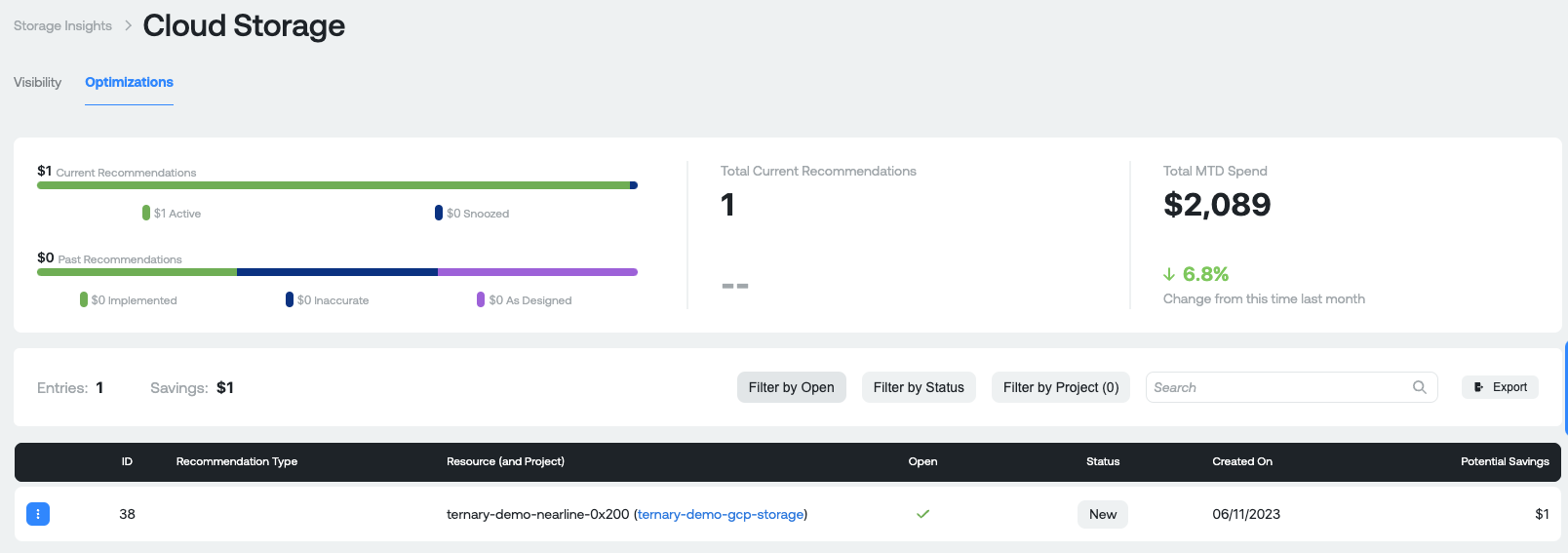
Before diving into what the recommendation insights numbers are, it is important to know the different types of recommendations that are potentially surfaced in Ternary for GCP Cloud Storage:
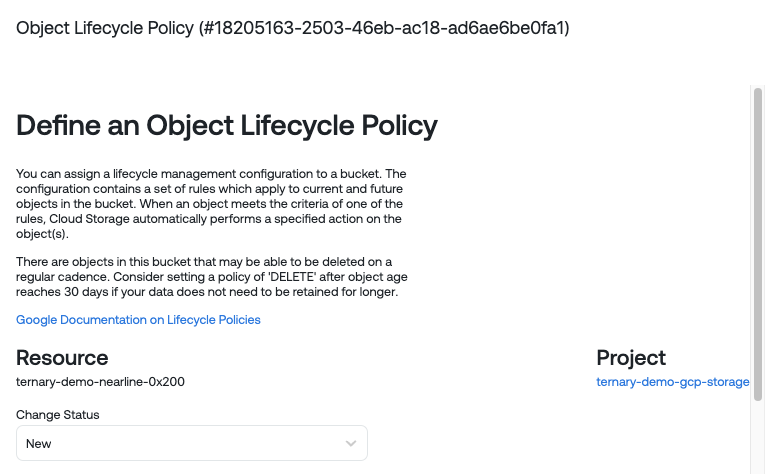
- Object lifecycle policy: You can assign a lifecycle management configuration to a bucket. The configuration contains a set of rules which apply to current and future
objects in the bucket. When an object meets the criteria of one of the rules, Cloud Storage automatically performs a specified action on the object(s). - Files never deleted from bucket: You have assigned a lifecycle management configuration to this bucket, but it does not seem to ever delete any files. Even if you are transitioning
files to archival storage classes, this still means your storage costs will monotonically increase over time. - Files never archived from bucket: You have assigned a lifecycle management configuration to this bucket which causes files to be deleted, but it takes a long time for the deletion to occur and the files are not archived in the meantime.
- Old object versions never removed: You have versioning enabled on this bucket, but do not limit the number of object versions. Even if you are doing other things to delete objects or transition them to other object classes, you most likely do not need an unbounded number of object versions.
Measures:
- Current Recommendations: Total amount of savings available across all recommendations. Active represent recommendations that do not have a status of "Snooze". Snoozed represents recommendations that have a status of "Snooze" set by a user for any reason.
- Past Recommendations: Total amount of previous recommendations available across all statuses available in Ternary (these are historical recommendations). Includes recommendations with a status of Implemented, Inaccurate or As-designed after discussion with your engineering team and the appropriate status assigned to the recommendation in ternary.
- Total Current Recommendations: Total number of current recommendations available.
- Total MTD spend: Total gross Cloud Storage spend month to date. The percentage represents your amount of MTD spend compared against this time last month.
Cloud Storage Recommendation table

Measures:
- ID: Unique ID of the recommendation in the Ternary platform. Each recommendation will have a unique ID for reference later.
- Recommendation type: The type of recommendation (Please see above for a description of possible recommendations).
- Resource (and Project): Unique resource name and associated Account it exists in.
- Open: Whether the recommendation has a status of New
- Status: Status of the recommendation, as assigned in the Ternary platform. Possible values: New, Accepted, As-Designed, Implemented, and Inaccurate.
- Created On: The date that the recommendation was created in the Ternary database.
- Potential Savings: Potential savings if the recommendation is actioned.
When you click on any one of the Table Rows, you'll see a pop up appear:

Details of a single recommendation. You can also snooze a recommendation for a specific period of time or set a particular status.
Other Useful Functionality
Export Visibility and Optimizations: Export the current Visibility categories and Cloud Storage optimization recommendations as CSVs
For Visibility, you can export the categories table below the graph

For Optimizations, you can export the recommendations table below the graph

For the View Buckets table, you can export the list of buckets and their data after accessing the view buckets table
Updated 9 months ago