
Data Mapping
Learn how Data Mapping in Ternary creates custom labels at scale using CSV or BigQuery mappings to enrich billing data with structured label values.
Data Mapping allows custom labels to be created at scale by mapping existing billing dimensions to new output labels using a CSV file or a BigQuery table. This approach is designed for bulk enrichment scenarios where label values can be derived from structured reference data rather than manual rules.
Data Mapping supports creating one or more output labels from one or more input match keys in a single operation.
How does Data Mapping work?
Data Mapping uses a lookup-based approach where one or more input columns are matched against existing billing dimensions and one or more output columns are written as new custom label values. Each row represents a deterministic mapping from defined inputs to their corresponding outputs.
Here’s how you can create custom labels with data mapping:
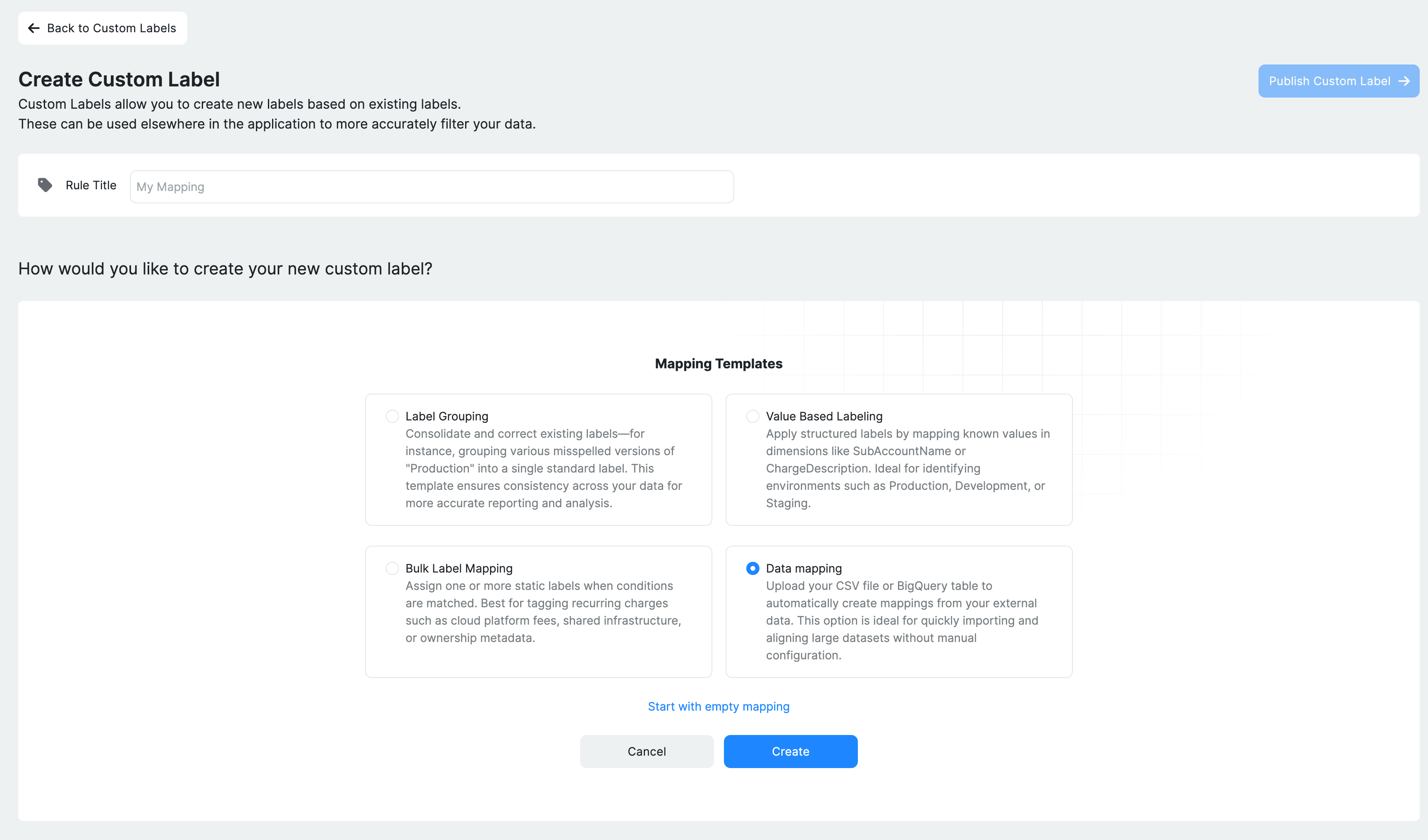
Step 1: Create a new Data Mapping label
- Navigate to Admin → Custom Labels → Create Custom Label.
- Enter a Rule Title that clearly describes the mapping purpose (for example, Map Projects to Business Units).
- Select Data Mapping as the label creation template.
- Choose the data source as a CSV file, or a BigQuery table using its fully qualified path.
- Attach the file or table reference and open its preview.
- In the rule editor, before selecting Save Draft, assign at least one column as INPUT and select a billing dimension for every INPUT column. If a dimension was not selected automatically, choose it in the preview screen described in Step 3.
- Select Save Draft to store the draft configuration. Complete the output mappings before publishing.
Step 2: Prepare the mapping file
The mapping file must follow a strict structure.
Supported formats
- CSV file (maximum size: 20 MB)
- BigQuery table
Before connecting a BigQuery table, ensure that the tenant service account can read the source table. A source preview or saved rule does not guarantee that subsequent billing processing can read the source successfully.
CSV uploads must contain a header row with at least two headers and at least one nonempty data row. Blank headers and duplicate preview-column identifiers are rejected. Periods in headers are replaced with underscores for those identifiers, so headers such as team.name and team_name conflict. Correct the headers before loading the preview again.
Required structure
- Assign each column as an INPUT or OUTPUT in the preview screen. Multiple input columns can form a composite lookup.
- Map every INPUT column to its corresponding billing dimension; its header does not need to match the internal billing dimension name.
- Choose the destination custom-label key for each OUTPUT column. Publishing requires at least one INPUT and one OUTPUT.
Example
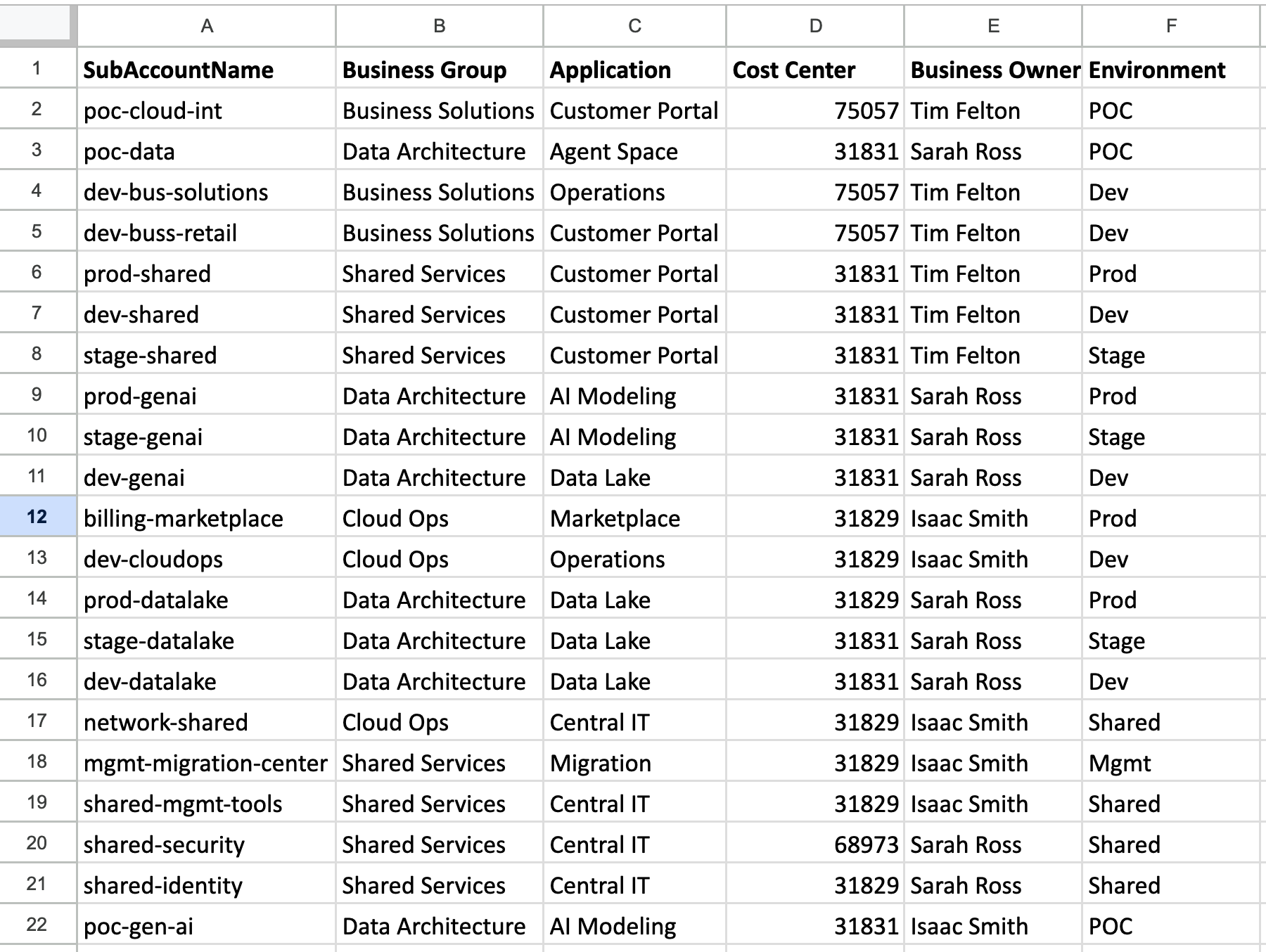
Each row defines how a specific input value maps to one or more output label values.
Step 3: Configure mappings in the preview screen
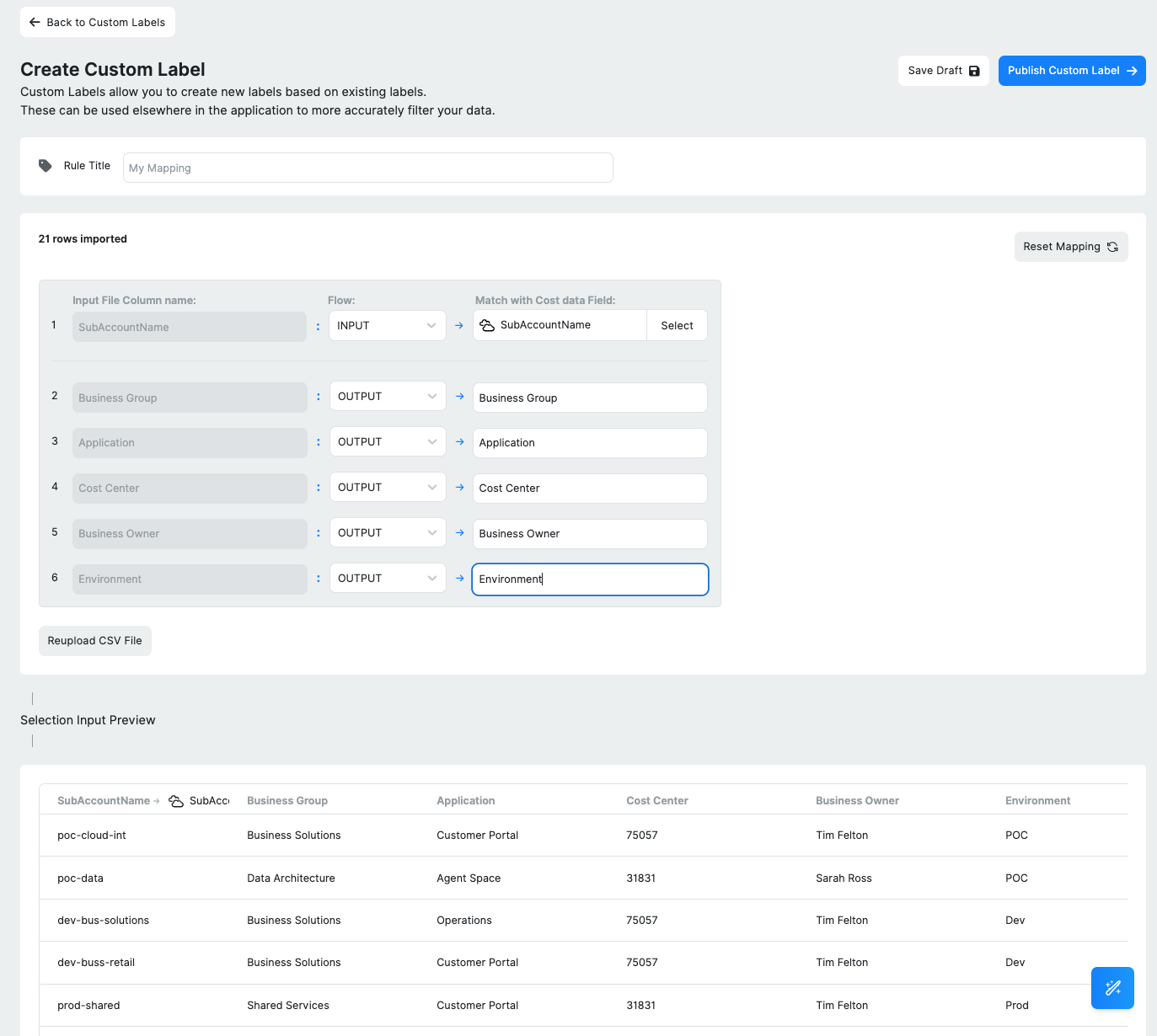
Once the file is attached, the mapping preview screen is used to define how file columns translate into billing data and custom labels. This step controls how input values are matched and how output labels are generated.
- File column listing: All column headers from the uploaded CSV or referenced BigQuery table are displayed.
- Flow selection: Each column is explicitly marked as an INPUT (lookup key) or OUTPUT (label to be written). Choose the destination label key for each OUTPUT column.
- Cost field matching: INPUT columns are mapped to existing billing dimensions, such as BillingAccountName or Project ID, to define how rows are matched.
- Preview table: Review up to ten rows from the source CSV or BigQuery table.
- Preview boundary: The preview does not join these rows to billing data or confirm which billing rows will receive labels. During processing, unmatched input tuples produce no labels, and source-read failures can still occur.
Validation rules and constraints
Before publishing, check the following requirements:
- Input values must exactly match billing data values.
- Use unique combinations of input values in the mapping source. Do not rely on duplicate inputs being rejected, a stable duplicate-key winner, or ranking to choose the output.
- Blank output values are permitted and treated as no label assignment.
- Invalid file formats, hidden characters, or malformed headers will cause an error.
API mapping sources
Billing processing supports gs:// and bigquery:// sources. The source must remain readable during processing; a successful create or update alone does not confirm processing succeeded. See the Custom Label API reference for the mappingURI field.
Updated 15 days ago