
AWS Multi Account Onboarding
Set up AWS multi-account onboarding in Ternary with centralized CloudWatch monitoring to enable organization-wide visibility across all accounts.
This page explains how to configure centralized CloudWatch monitoring across multiple AWS accounts to enable organization-wide visibility in Ternary.
Prerequisites for AWS Multi Account Onboarding
The following requirements must be met before configuring multi-account monitoring:
- An AWS Cloud Engineer with administrator privileges as defined below
- A Ternary user with the Tenant Admin role to create a new AWS cloud
- If source accounts contain workloads in AWS regions that are not enabled by default, those regions must be enabled in the monitoring account to ensure metrics are collected.
The steps below describe configuration through the AWS Management Console. Programmatic setup using the provided scripts is also available and is generally less prone to human error.
Definitions
- Monitoring account
A central AWS account that aggregates observability data from source accounts. For maximum compatibility and metrics coverage, the management account is recommended as the monitoring account.
Due to CloudFormation constraints, metrics cannot be collected from management accounts unless they are also configured as the monitoring account.
- Source account
An AWS account that generates observability data for its resources. Source accounts share metrics, logs, and traces with the monitoring account.
Permissions
The following permissions are required to configure cross-account observability.
- Monitoring account
Access to the monitoring account must include either full administrator permissions or the ability to perform the following actions:
{
"Version": "2012-10-17",
"Statement": [
{
"Sid": "AllowSinkModification",
"Effect": "Allow",
"Action": [
"oam:CreateSink",
"oam:DeleteSink",
"oam:PutSinkPolicy",
"oam:TagResource"
][
"oam:CreateSink",
"oam:DeleteSink",
"oam:PutSinkPolicy",
"oam:TagResource"
],
"Resource": ""
},
{
"Sid": "AllowReadOnly",
"Effect": "Allow",
"Action": ["oam:Get", "oam:List*"],
"Resource": "*"
}
]
}
- Source account
This configuration is not required when using AWS Organizations. Access to each source account must include either full administrator permissions or the following:
{
"Version": "2012-10-17",
"Statement": [{
"Effect": "Allow",
"Action": [
"oam:CreateLink",
"oam:UpdateLink"
][
"oam:CreateLink",
"oam:UpdateLink"
],
"Resource": [
"arn:aws:oam:_::link/",
"arn:aws:oam:_::sink/"
][
"arn:aws:oam:_::link/",
"arn:aws:oam:_::sink/"
]
},
{
"Effect": "Allow",
"Action": [
"oam:List*",
"oam:Get*"
][
"oam:List*",
"oam:Get*"
],
"Resource": ""
},
{
"Effect": "Allow",
"Action": [
"oam:DeleteLink",
"oam:GetLink",
"oam:TagResource"
][
"oam:DeleteLink",
"oam:GetLink",
"oam:TagResource"
],
"Resource": "arn:aws:oam:_::link/"
},
{
"Action": "cloudwatch:Link",
"Effect": "Allow",
"Resource": ""
},
{
"Action": "logs:Link",
"Effect": "Allow",
"Resource": "_"
},
{
"Action": "xray:Link",
"Effect": "Allow",
"Resource": "*"
}
]
}
The logs:Link and xray:Link permissions may be omitted if logs and traces are not required, as Ternary does not ingest this data.
- Optional: AWS Organizations
Using AWS Organizations is recommended, as new accounts are automatically configured as source accounts when added.
- Regional requirement
These steps must be completed for each AWS region where monitoring is required. Monitoring account configuration should be completed per region before deploying configuration to source accounts.
How to configure AWS Multi Account Onboarding in Ternary
Step 1: Access the monitoring account
Sign in to the AWS monitoring account with administrator access or the required permissions.
Step 2: Identify accounts to monitor
If using AWS Organizations, determine the scope of monitoring:
- Select the Root to monitor the entire organization, or an Organizational Unit (OU) for partial coverage
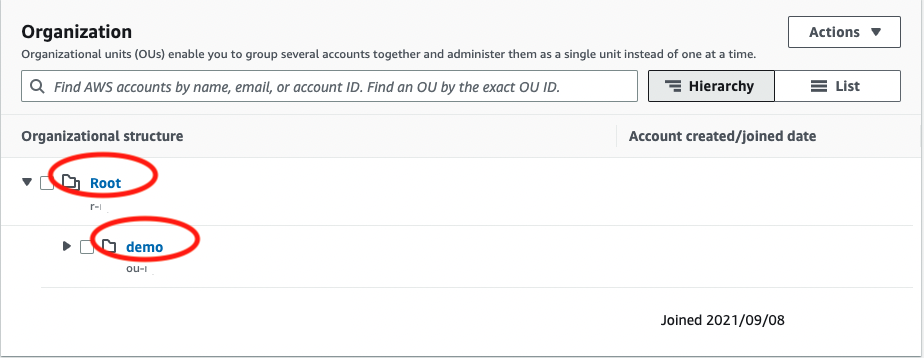
- Extract the organization ID from the ARN (for example, o-xxxxxxx)
- If suspended accounts exist, note the root OU ID (starts with r-) for exclusion during deployment
If not using AWS Organizations, prepare a list of AWS account IDs to be monitored.
Step 3: Configure CloudWatch monitoring
Navigate to CloudWatch → Settings → Monitoring Account Configuration and configure cross-account observability.

Logs and traces can be disabled, as Ternary does not ingest this data. Complete the setup and confirm the configuration.
Step 4: Download the CloudFormation template
After configuration:
- Navigate to CloudWatch → Resources
- Download the CloudFormation template used to link source accounts

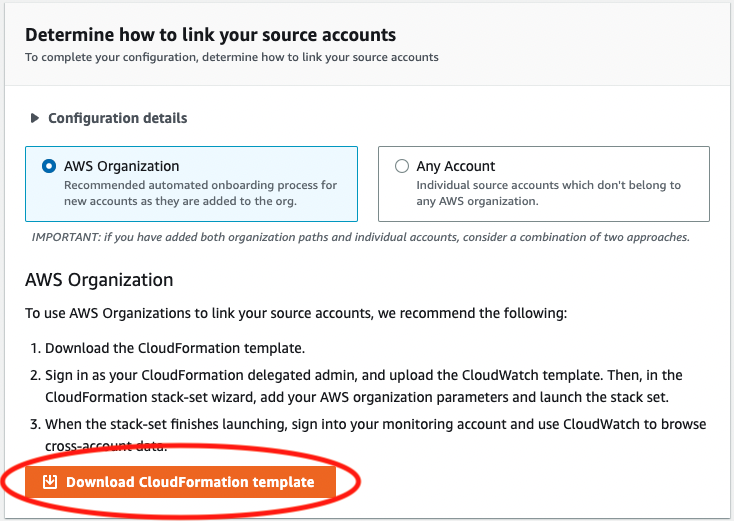
If AWS Organizations is not used, ensure the “Any Account” option is selected before downloading the template.
Step 5: Deploy configuration using StackSets
Sign in to the AWS management account and navigate to CloudFormation → StackSets → Create StackSet.
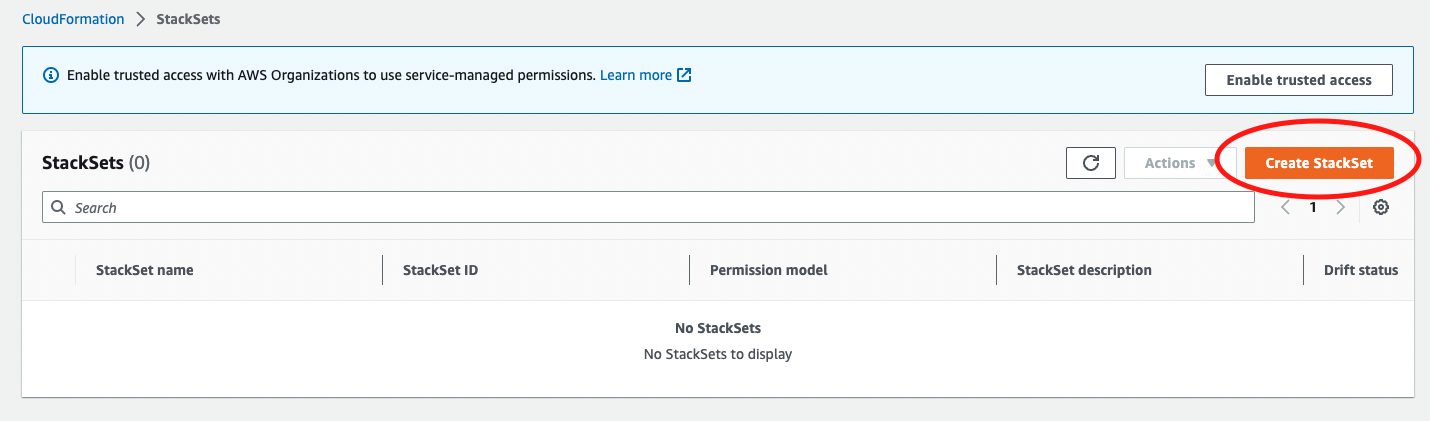
- Enable trusted access if required
- Select service-managed permissions
- Upload the CloudFormation template downloaded earlier
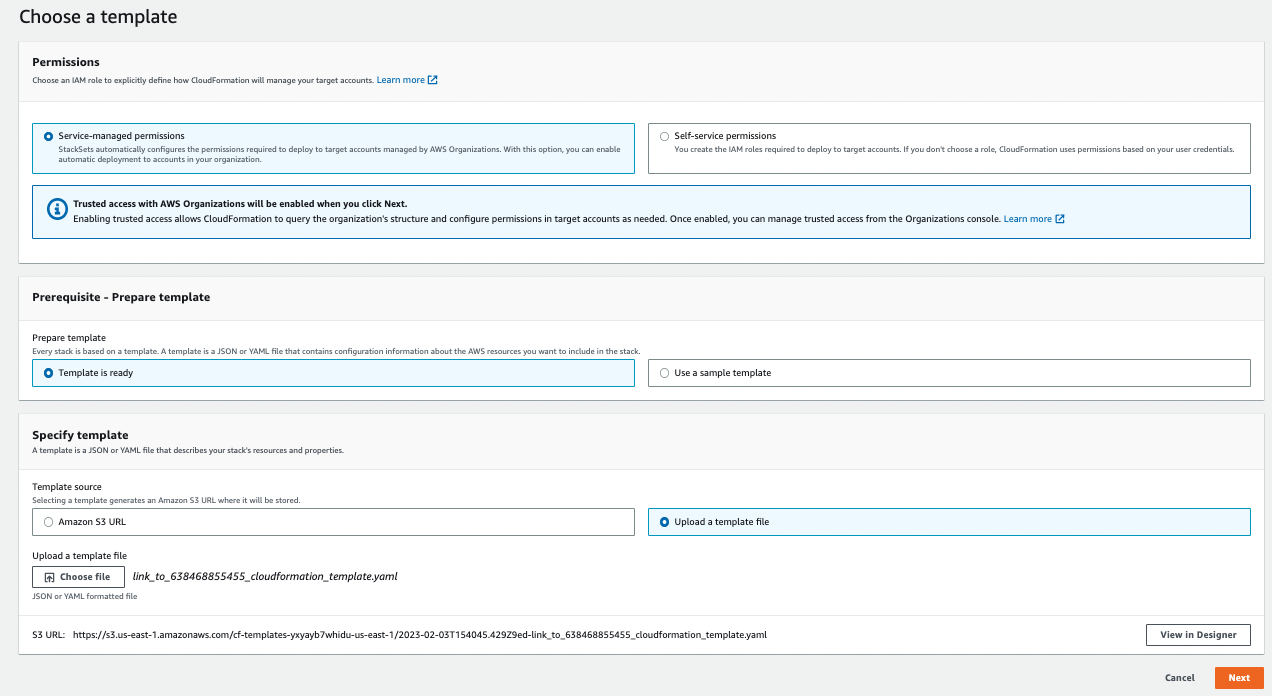
Provide StackSet details such as name and optional tags, then select the region corresponding to the monitoring configuration.
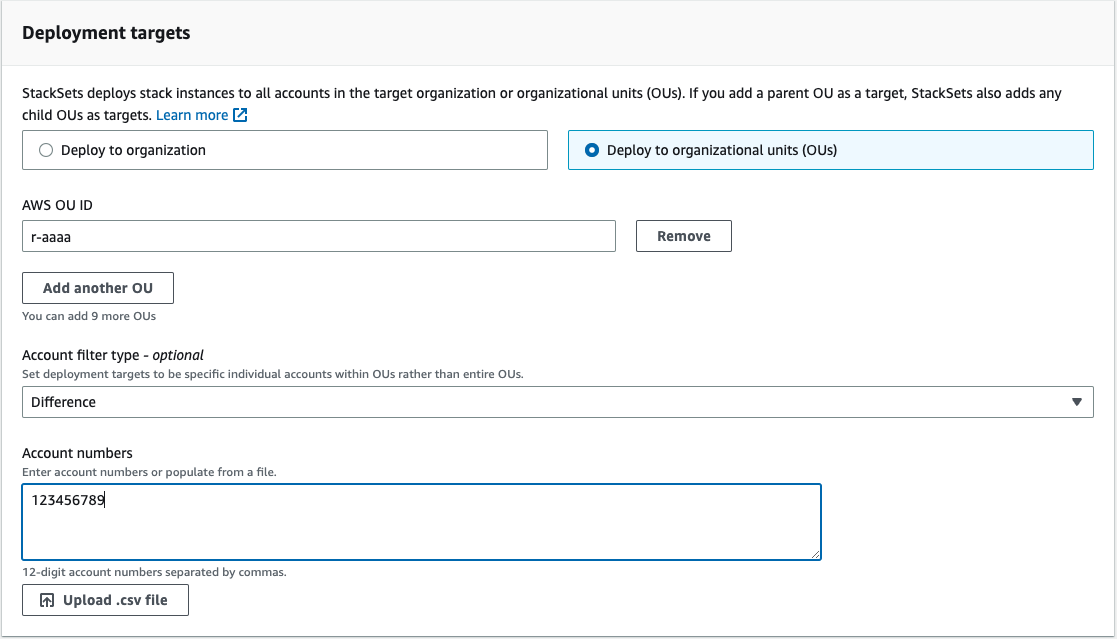
Step 6: Define deployment scope and exclusions
If suspended AWS accounts are present, Stack creation will fail unless they are excluded. Accounts can also be excluded selectively based on monitoring requirements.
Define how the StackSet is applied:
- Choose Deploy to organizational units (OUs)
- Provide the OU ID (r- for full organization or ou- for partial scope)
To exclude accounts:
- Select Difference as the account filter type
- Provide account IDs to exclude or upload a CSV file
Review the configuration and submit the StackSet.
Step 7: Repeat for additional regions
Repeat the monitoring account setup and StackSet deployment for each AWS region where centralized monitoring is required.
Updated 6 months ago