
Google Onboarding - Billing Subaccounts
Learn how to onboard Google Cloud subaccounts in Ternary by creating a BigQuery materialized view, sharing access, and enabling billing data ingestion.
Some organizations need to ingest billing data for a subset of Cloud Billing subaccounts instead of the entire parent billing account. This is done by creating a BigQuery materialized view that filters billing data for the required subaccounts. Ternary ingests data from this view instead of the base billing export table. Refer to the Google Cloud BigQuery materialized view documentation for additional information.
Prerequisites
- Organization Administrator access to the GCP organization or Owner access to the Google Cloud project being shared with Ternary. Using an organization is recommended and aligns with Google Cloud best practices.
- An active Ternary tenant with a unique service account ID in the format
[email protected]. Keep the Ternary service account ID available for the configuration steps.
How to configure Google Cloud sub-accounts in Ternary?
Step 1: Enable BigQuery billing export and prepare access
If a BigQuery billing export is not already configured, enable it using the standard onboarding steps. After confirming that billing export data is available in BigQuery, identify the billing subaccounts that need to be included. The Ternary service account provided during tenant provisioning will be used to grant access to the materialized view.
Step 2: Create a BigQuery materialized view
Create a materialized view using the billing export table as the base table. The view filters billing data to include only the selected billing subaccounts. Use the following syntax:
CREATE MATERIALIZED VIEW project_id.dataset.viewname PARTITION BY DATE(pt) AS SELECT *, _PARTITIONTIME AS pt FROM project_id.dataset.basetable WHERE billing_account_id IN ( 'SUB-ACCOUNT-1', 'SUB-ACCOUNT-2', ... )Replace the project, dataset, table, and billing account values with the appropriate identifiers.
Step 3: Share and authorize access to the materialized view
This step requires two configurations.
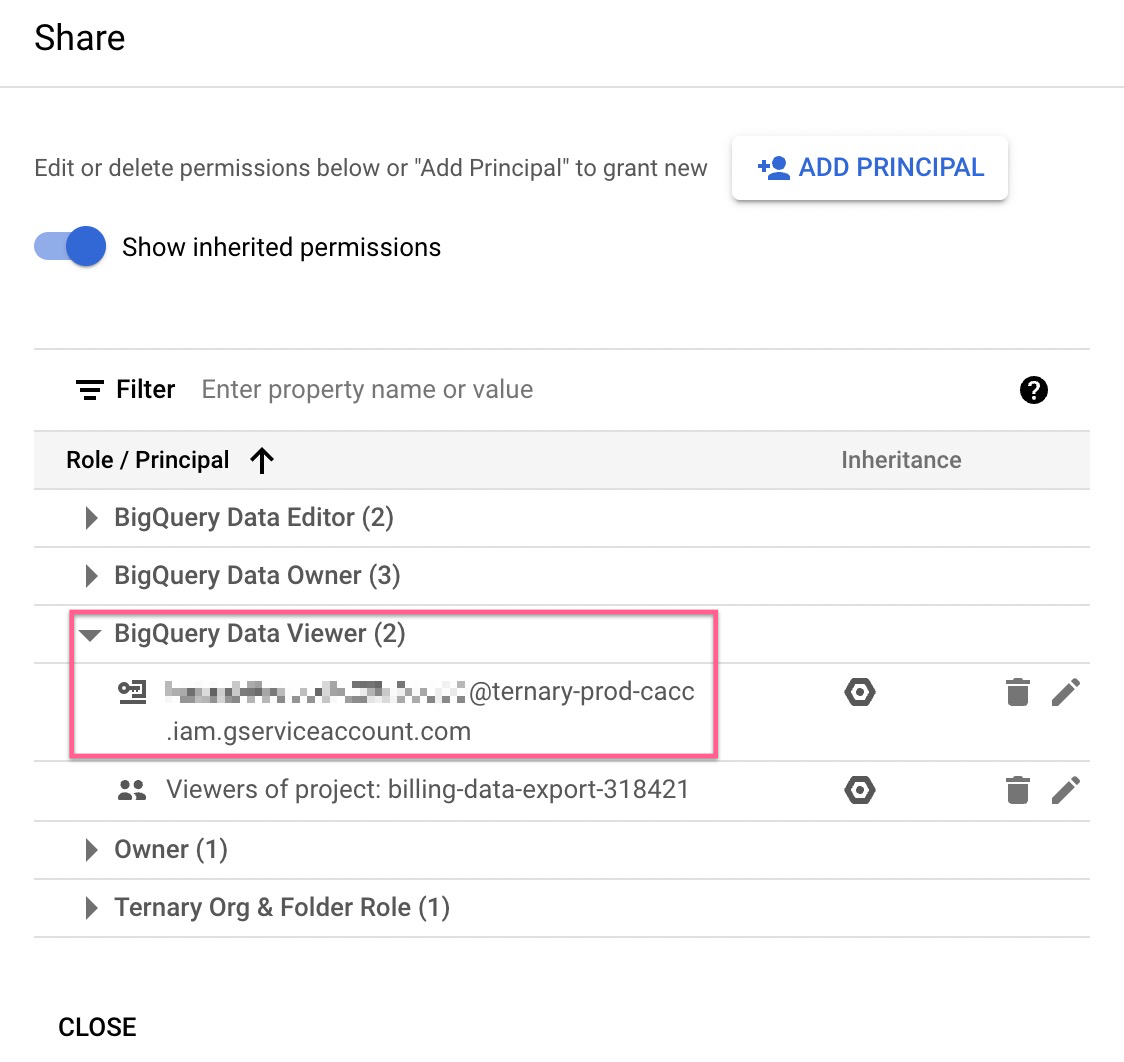
- Grant Ternary access to the materialized view. Open the BigQuery console, select the materialized view, and use the Share option. Add the Ternary service account as a principal and assign the BigQuery Data Viewer role. The materialized view 'Share' configuration card should look similar to the following image:
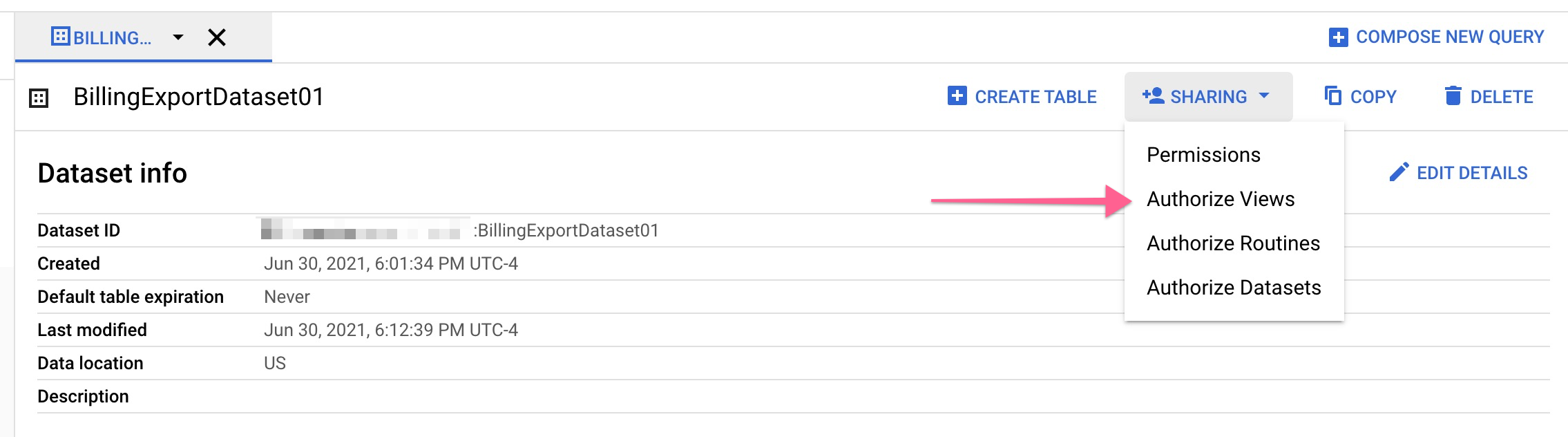
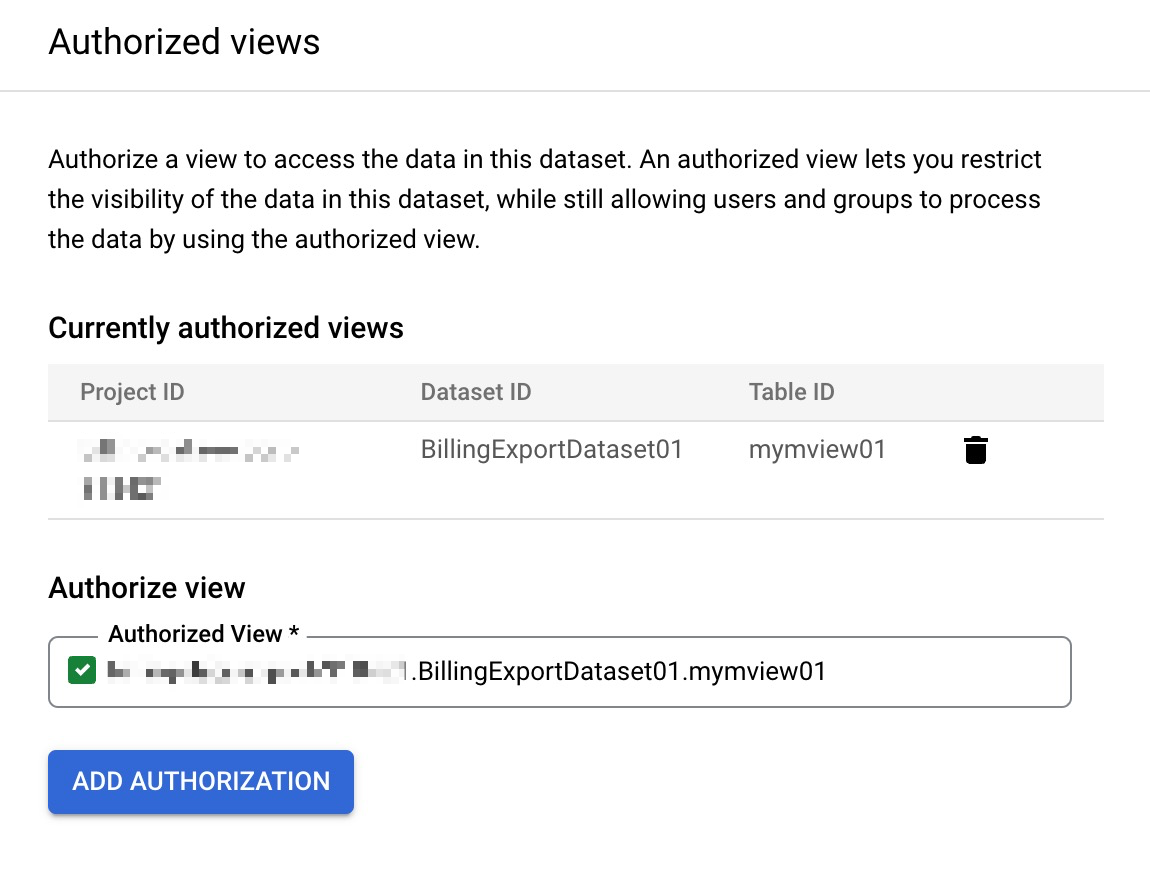
- Next, authorize the materialized view to access the underlying billing export dataset. Open the billing export dataset in BigQuery, navigate to Sharing → Authorize Views, and add the materialized view as an authorized view. This allows the view to read data from the billing export dataset.
Step 4: Complete configuration in Ternary
Provide the following details to the Ternary Customer Success team:
- Google Cloud Project ID containing the materialized view
- Google Cloud Dataset ID containing the materialized view
- Materialized view name
These values can be found in the Authorized Views configuration in BigQuery. After validation, Ternary will enable ingestion and confirm when billing data is available.
Updated 7 months ago