
Bring Your Own Data (BYOD)
Learn how to use Bring Your Own Data (BYOD) feature in Ternary to ingest custom datasets and analyze them alongside cloud cost and usage data.
Ternary’s Bring Your Own Data (BYOD) feature allows ingestion of custom time series datasets into the platform. This enables analysis of business metrics such as KPIs, non cloud costs, and other financial or operational data alongside existing multi cloud billing data.
Typical use cases include data center spend, private cloud costs, SaaS spend, and revenue data.
The BYOD integration supports the following data sources:
- Amazon S3 for CSV files stored in S3 buckets
- Azure Blob Storage for CSV files stored in containers
- Google Cloud Storage for CSV files stored in GCS buckets
- Alibaba Object Storage Service (OSS)
- Google BigQuery for direct ingestion from tables
Ternary checks for updates every four hours and ingests changes automatically. A manual refresh can also be triggered from the integration settings.
Requirements and prerequisites
The following conditions must be met before configuring the BYOD Ternary integration:
Data requirements
The dataset must include at least one date or timestamp column representing the start of the billing or usage period. This field is mandatory and required for normalization and ingestion scheduling. Without it, the dataset cannot be processed. The column must be named ChargePeriodStart and contain date values, as it is used for partitioning and time-range queries.
Additional date or timestamp fields can be included to support more granular analysis.
Supported formats:
- CSV files for Amazon S3, Azure Blob Storage, Alibaba OSS, and Google Cloud Storage
- Parquet files for Amazon S3, Azure Blob Storage, Alibaba OSS, and Google Cloud Storage
- Native BigQuery tables
File Format Guidance
Parquet is the recommended file format when possible. Parquet files are 12–43% faster to ingest end-to-end compared to CSV, produce smaller files (~20% smaller), enable faster BigQuery loads, and provide cleaner schema detection.
When using CSV files:
- Always include a header row
- Use standard null representations: NULL, null, empty string, or N/A
- Avoid mixing null marker styles across files
- Column names must be valid BigQuery identifiers
Data can be stored in the same location as billing exports or in a separate bucket or container. If a separate location is used, additional IAM permissions are required.
Recommended Limits
The following limits are recommended to ensure reliable ingestion performance. These are based on internal stress testing and represent safe operating thresholds.
| Dimensions | Recommended Limit |
|---|---|
| Rows per file (CSV) | 10M |
| Rows per file (Parquet) | 10M |
| File size (CSV/Parquet) | 1 GB |
| Columns per file (file source) | 100 |
| Columns (BigQuery table source) | 500 |
| Files per integration | 100 |
| Source mappings | 100 |
| Rows (BigQuery table source) | 100M |
When to Split Data
Split datasets when individual files exceed 1 GB. Prefer splitting by time range (for example, per month) rather than by column.
Avoid splitting into 500+ small files, as per-file overhead reduces performance. A single 1 GB file ingests faster than 100 × 10 MB files.
Source Type Guidance
- Google BigQuery (recommended for large datasets): approximately 70× faster than file-based ingestion. A 100M-row, 10.5 GB BigQuery table completed in 19 seconds compared to 22 minutes for a 50M-row file-based ingestion.
- Google Cloud Storage (recommended for file-based ingestion): the fastest file-based path. Organize files in a flat folder structure for best results.
- Amazon S3 / Azure Blob Storage / Alibaba OSS: cross-cloud copy adds latency because files are first copied to a GCS working bucket before ingestion.
Columns to Avoid Mapping
Tags or other JSON-heavy columns can cause “response too big” errors during the update lineage step. Leave these columns unmapped.
Supported tag formats
- Column based tags: Each column represents a tag key, with row values representing tag values. For example, a column named
environmentwith values such asprodordev. - JSON tag column: A single column containing a JSON object or list of key value pairs. Ternary automatically flattens this into individual tags and dimensions.
Access and configuration requirements
IAM permissions must allow the Ternary service account to read the data source.
- For Amazon S3, ensure the role used for Cost and Usage Reports also has access to the BYOD bucket or folder
- For Azure Blob Storage, assign Storage Blob Data Reader on the container to the role used for configuring your Bill Export.
- For Google Cloud Storage, grant permissions such as
storage.objects.get,storage.objects.list, andresourcemanager.projects.getto the service account email. - For Alibaba Object Storage Service, follow the steps in Set up Alibaba Cloud bill in Ternary to grant Ternary's access to your Alibaba environment.
- For BigQuery, grant
bigquery.tables.getDataon the target table
The integration name cannot contain spaces. Use underscores or similar formats, for example BYOD_test.
How to configure Bring Your Own Data (BYOD) integration in Ternary?
Step 1: Navigate to BYOD configuration
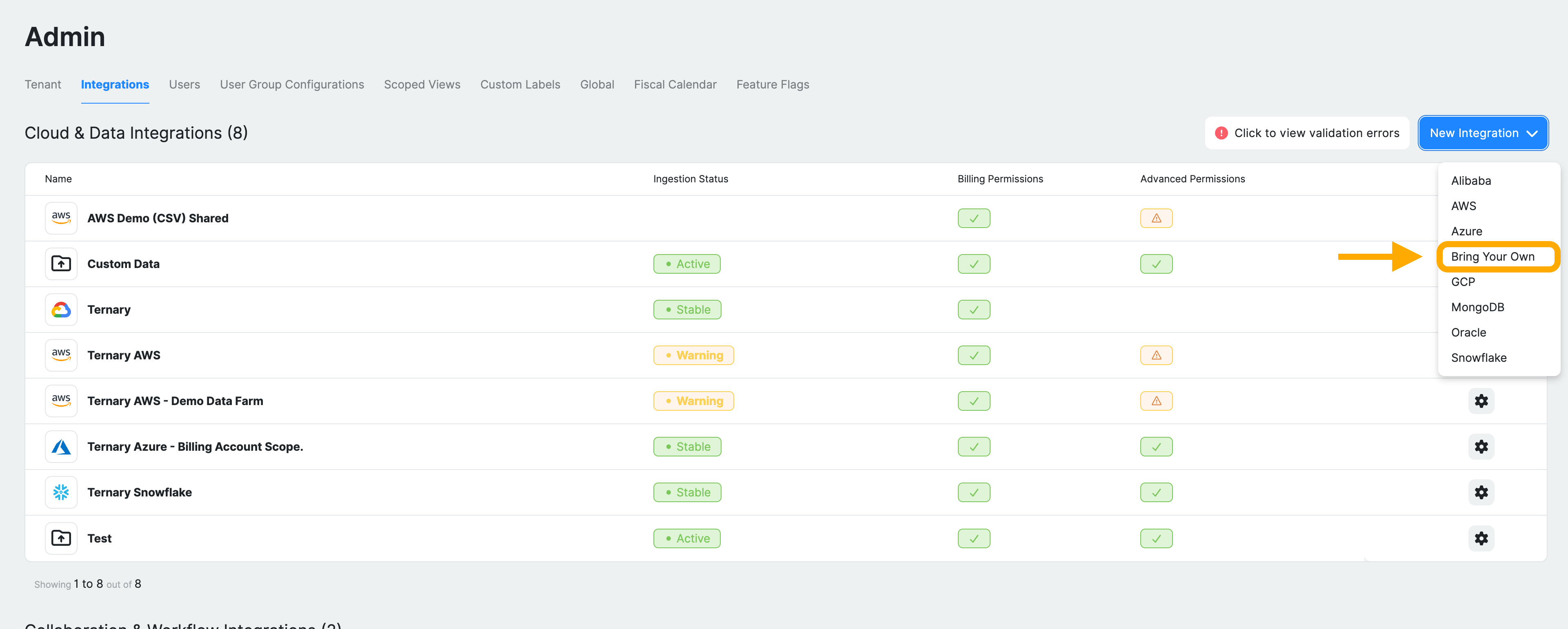
Sign in to Ternary as an Admin and navigate to Admin → Integrations. Click New Integration and select Bring Your Own to start the setup.
Step 2: Configure the data source
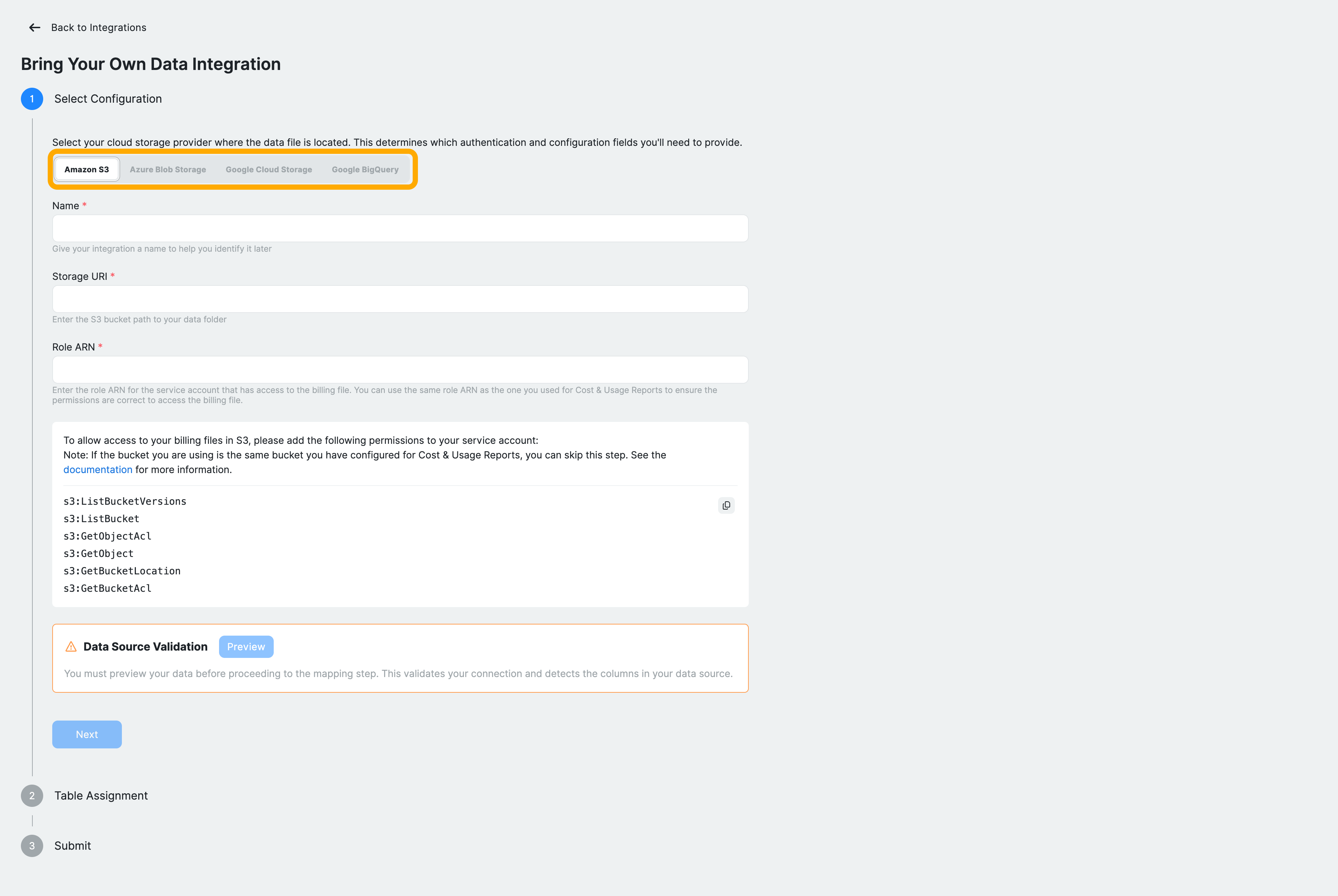
The configuration flow consists of three stages: selecting the data source, assigning the table schema, and submitting the integration.
Start by selecting your data source. Choose from Amazon S3, Azure Blob Storage, Google Cloud Storage, or Google BigQuery, depending on where your dataset is stored. Then enter the required connection details, which vary by provider:
Google Cloud Storage
- Enter a name for the data source
- Provide the storage URI (for example, gs://bucket/path)
- Ensure the required IAM permissions are granted to the Service Account Email of your tenant, visible on the Admin page.
Amazon S3
- Enter the S3 bucket path
- Provide the required access configuration, such as a Role ARN. It should match the Role ARN you use for billing after setting up in this guide: Amazon Web Services, Step 3.
- Ensure the Service Account Unique ID of your tenant is used within the IAM Role you defined.
Azure Blob Storage
- Provide the URL to the bucket and the prefix within the bucket to read, such as
https://my-bucket.core.blob.windows.net/<path> - Provide the required access configuration, an App ID and a Directory ID. It should match the same values you used for setting up an Azure bill: Microsoft Azure, Steps 1 and 2.
Alibaba Object Storage Service
- Enter the URL to the bucket and the prefix as follows:
oss://<bucket-name>.oss-<region>.aliyuncs.com/<path>/. Be aware that the region needs a prefix 'oss-', so a URL likeoss://my-bucket.ap-southeast-1.aliyuncs.comwill not work. The correct URL would beoss://my-bucket.oss-ap-southeast-1.aliyuncs.com. - Provide the required access configuration, a RAM Role and a RAM Identity Provider. It should match the same values you used for setting up an Alibaba bill, in the guide for Alibaba Cloud, Step 3.
Google BigQuery
- Provide the table path in
project.dataset.tableformat - Ensure the required permissions are granted for access
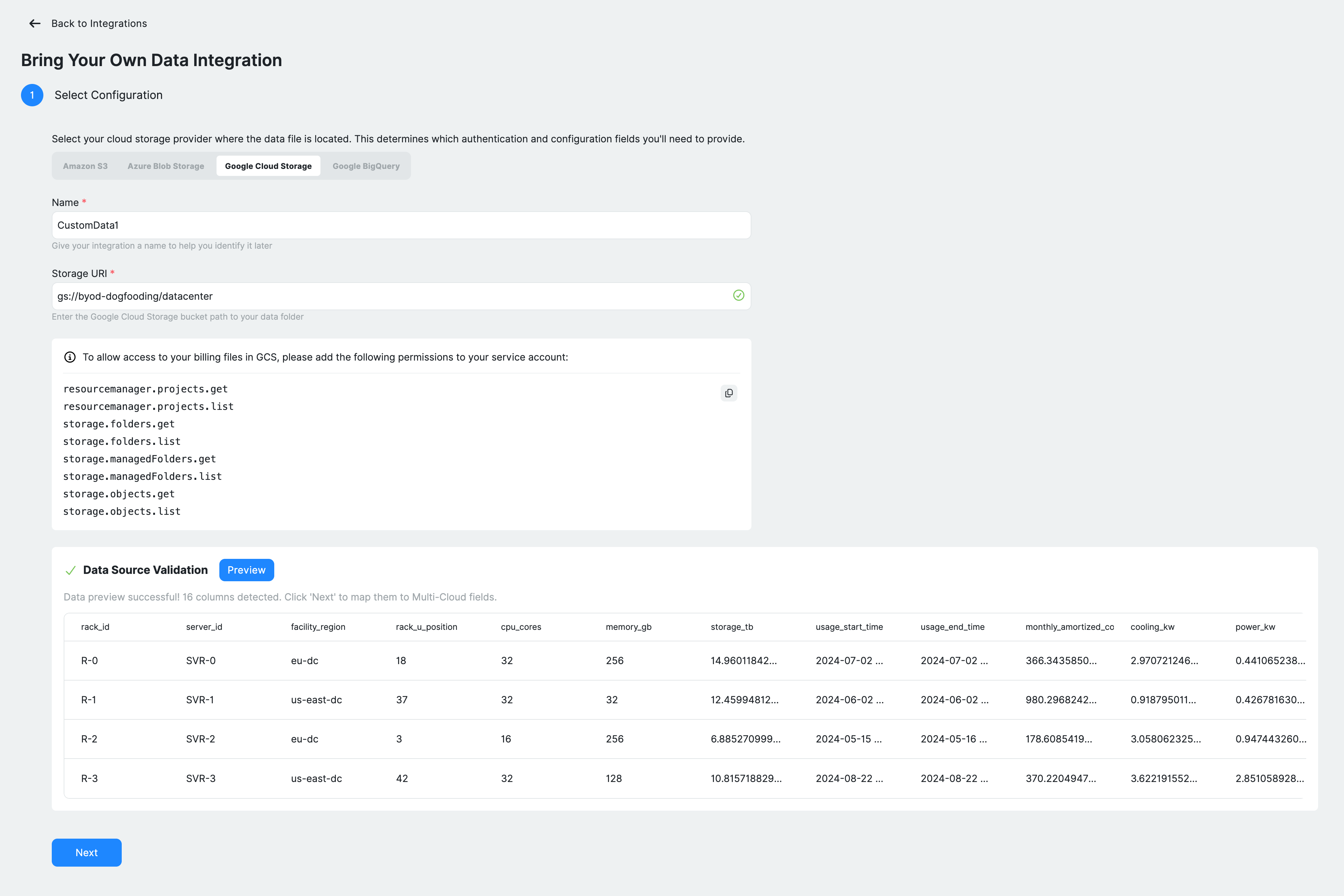
After entering the details, validate the connection by clicking Preview under Data Source Validation. Ternary loads a sample of your dataset, detects available columns, and displays a preview. A successful validation confirms that the data source is accessible and correctly formatted. This step must be completed before proceeding.
Step 3: Assign table schema
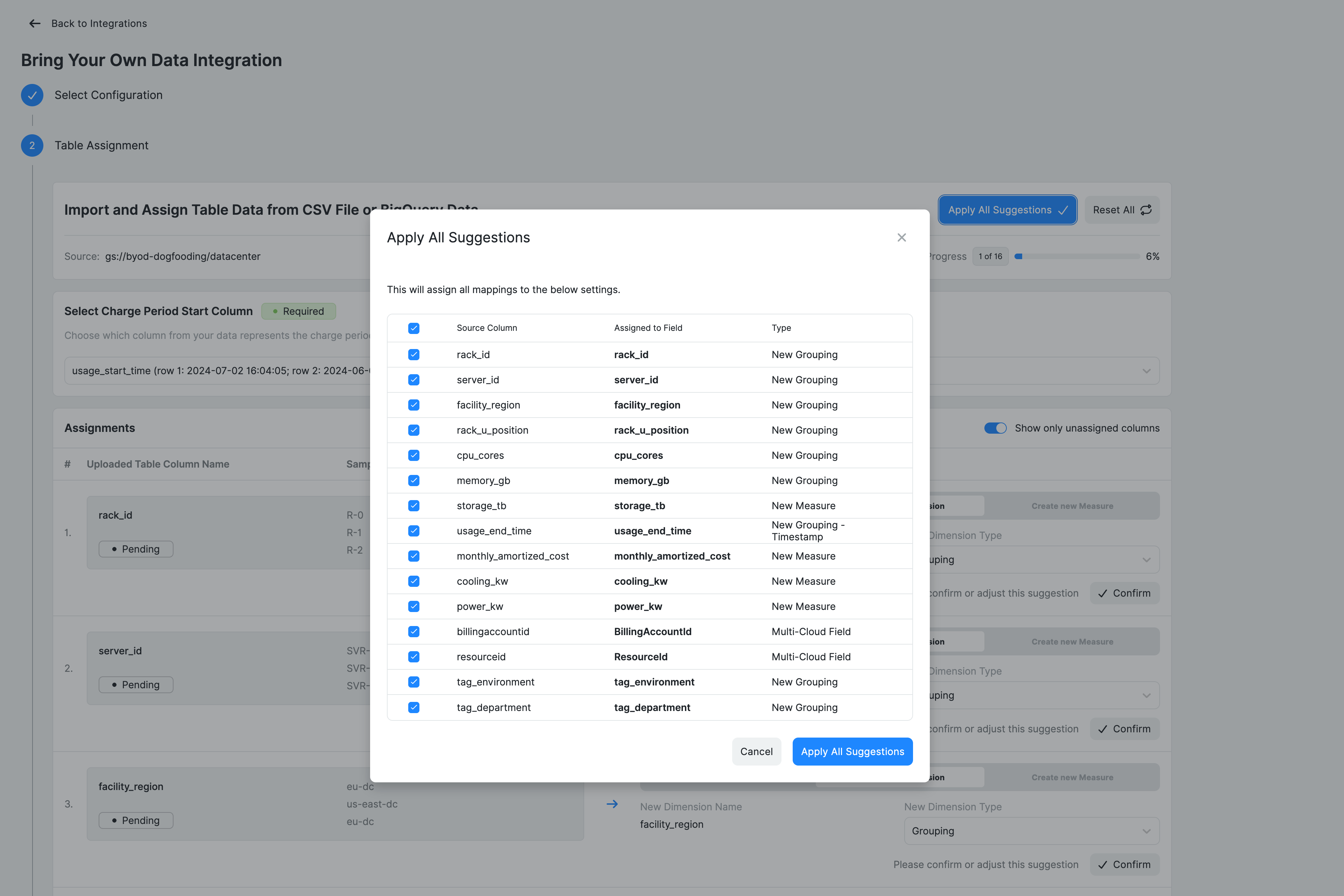
Map your CSV/BigQuery dataset columns to Ternary fields or define new dimensions and measures.
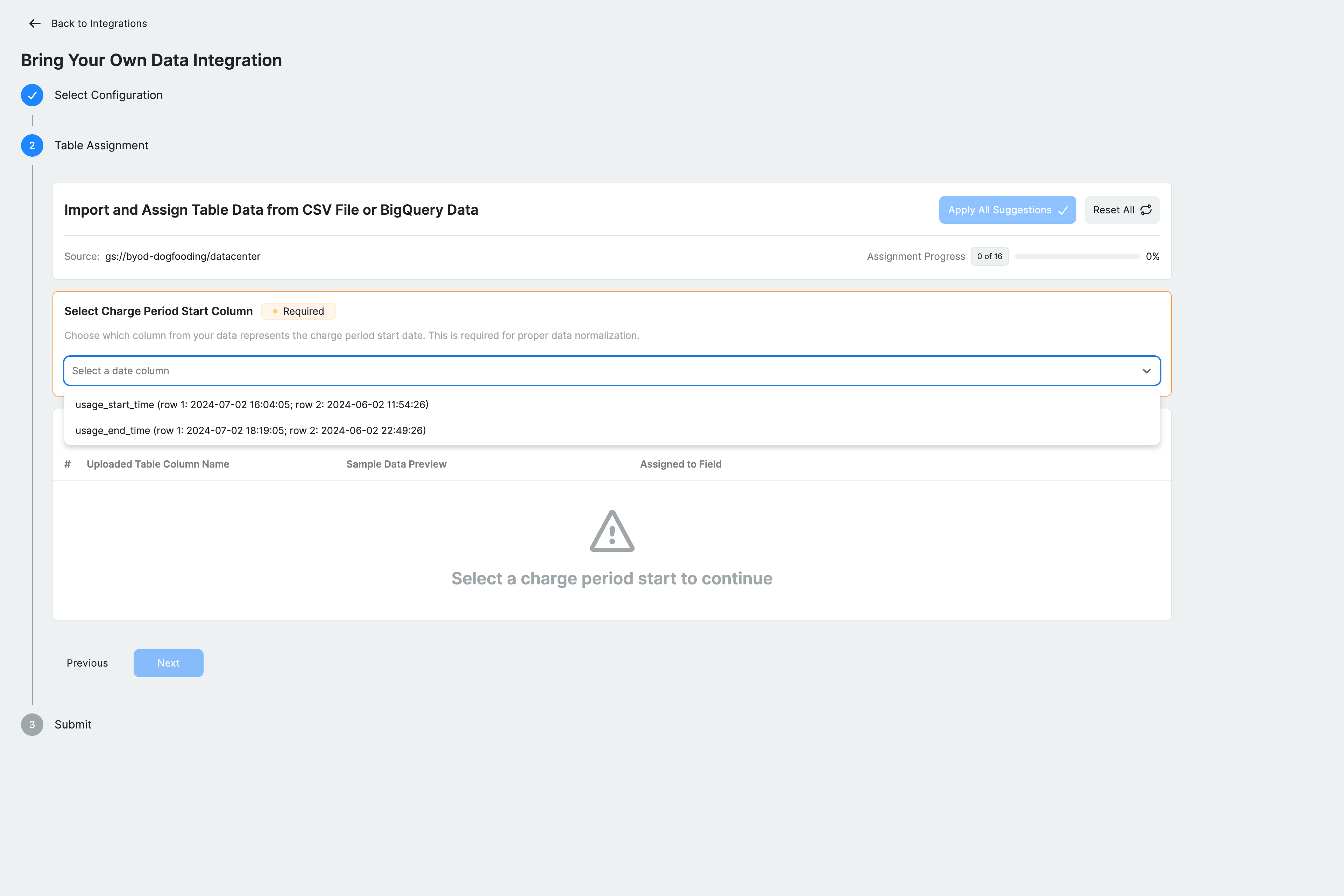
Start by selecting the Charge Period Start column, which represents the start of each billing or usage period. This field is required for normalization. Ternary detects available date columns and presents them for selection.
Next, review each column in the assignment table. Columns can be mapped in three ways.
- Assigned to an existing Multi-Cloud field such as
BillingPeriodEndorServiceName, ensuring consistency with Ternary’s standard schema. - Defined as new dimensions, which represent categorical data. Dimension types include string groupings, JSON-based tags that are automatically flattened, or additional timestamp fields for time-based analysis. New dimensions inherit the column header as their name in Ternary. To change the name, edit the header in your source file before re‑ingesting.
- Columns can also be defined as measures, which represent numeric values such as
effectivecost, discount_amount, usage_units. Measures are aggregated using sum, so non-additive values should be treated as dimensions instead.
Avoid mapping tags or other JSON-heavy columns, as these can cause errors during the update lineage step. Leave them unmapped.
Ternary provides options to auto-map columns based on detected patterns or reset mappings if needed. All required fields must be assigned before continuing.
Click Next once mapping is complete.
Step 4: Review and submit
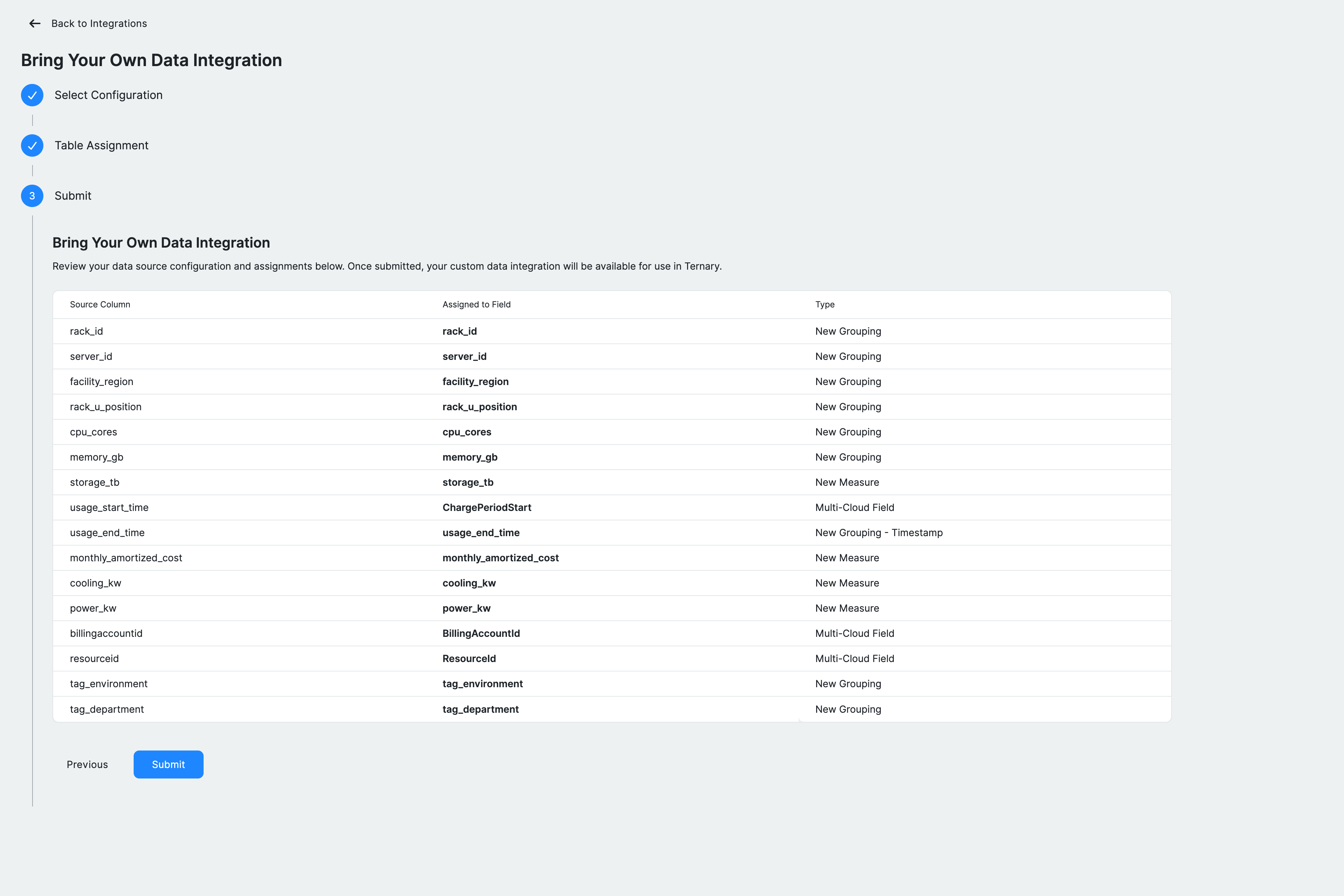
Review the configuration before finalizing the integration. This includes the integration name, data source location, and a summary of all column mappings, including existing fields, new dimensions, and measures.
The ingestion schedule is set to run every four hours. A manual refresh can also be triggered using the Request Billing Update option.
Click Submit to create the integration. Ternary will begin ingesting the dataset based on the configured schedule.
Using BYOD data in reports
Once ingested, BYOD data appears as a separate provider in the Reporting Engine, typically under Custom Data.
- Combine BYOD metrics with other cloud providers in the same report
- Group by custom dimensions or tags defined during mapping
- Build dashboards to analyze business metrics alongside cloud spend
Known Constraints
- Full table rebuild occurs every ingestion cycle. There is no incremental ingestion mode.
- Schema validation samples only one file. Ensure all files in an integration share a consistent schema.
- There is a 10 GB file size soft limit.
Troubleshooting and common errors
| Issue | Possible Cause | Resolution |
|---|---|---|
| “Preview failed” | Invalid URI or missing permissions | Verify the bucket/table path. Check that the service account has the required storage.objects.get/list (GCS), s3:GetObject (S3), Storage Blob Data Reader (Azure) or bigquery.tables.getData (BigQuery) permissions. |
| “No date columns detected” | Dataset lacks a date or timestamp column | Add a column containing a date (YYYY‑MM‑DD) or timestamp. Only BigQuery date formats supported by BigQuery are accepted. |
| “Invalid date format” | Date column not in a supported format | For CSV, use ISO format (YYYY‑MM‑DD or YYYY‑MM‑DDTHH:MM:SSZ). BigQuery supports its native date/datetime formats. |
| Large file ingestion takes a long time | Very large CSV | There is no explicit row limit, but performance may degrade on very large files. Consider splitting large datasets or using BigQuery. |
FAQ
- Can I load non cost metrics such as headcount or usage units? Yes. BYOD supports any time series numeric data. New measures can be created during the assignment step and analyzed alongside cost data.
- Can BYOD data be combined with cloud billing data? Yes. BYOD appears as an additional provider and can be used in the same reports with other providers.
- How often is BYOD data refreshed? Data is refreshed every four hours by default. A manual refresh can be triggered from the integration settings.
- Do I need separate IAM permissions if I use the same bucket as billing data? If the file is in the same bucket or container, the existing role can be reused. If it is stored elsewhere, additional read permissions are required.
- What happens if the schema changes? New columns must be mapped again in Table Assignment. Removed columns will no longer be ingested. Changes to the date column require reconfiguration.
- Can a BYOD dataset be deleted? Yes. Deleting the integration from Admin → Integrations stops ingestion and removes the dataset from reporting.
- What tag formats are supported? Tags can be provided as individual key value columns or as a JSON column. JSON tags are automatically flattened into dimensions.
- Is there a limit on the number of columns? There is no strict limit, but very wide tables may be harder to manage. Only mapped columns are ingested.
Updated 4 months ago