
Anthropic
Connect Anthropic Console API usage or Claude.ai Enterprise usage to Ternary.
Connect Anthropic usage to analyze it alongside all technology spend. Choose the feed that matches the product you use: Console API for direct Anthropic API workloads, or Claude.ai Subscription for Claude.ai Enterprise analytics. Each integration covers one feed. Create two integrations if you use both products.
Claude models billed through a cloud platform use that platform's billing integration. Choose the connection from Integrations Overview.
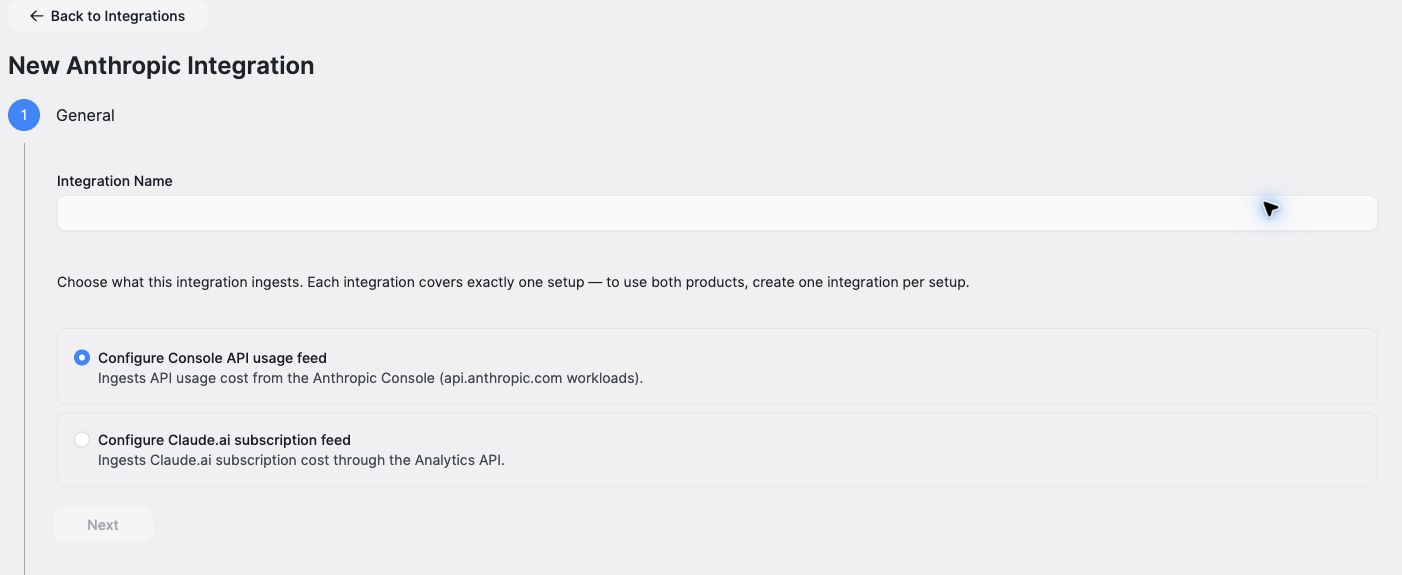
Choose one feed in General. Console API and Claude.ai Enterprise use different organization IDs and key types.
Before you start
- Your Ternary user needs permission to create data integrations. Ask your tenant administrator if you cannot access Admin → Integrations or create a connection.
- For Console API, an Anthropic organization administrator or owner must prepare the organization ID and a full-access Admin API key.
- For Claude.ai Subscription, you need a Claude.ai Enterprise organization. Its Primary Owner must create an Analytics API key with
read:analyticsscope. Team is not available in this integration.
Connect Console API usage
Prepare credentials in Anthropic
In the Anthropic Console, copy the organization ID from Settings → Organization. Under Settings → Admin keys, create a full-access Admin API key. Ternary requires the sk-ant-admin01- key type; standard or workspace-scoped API keys fail validation.
See Anthropic's Admin API and Usage and Cost API documentation for provider requirements.
Create the Console integration
- In Ternary, go to Admin → Integrations, select New Integration, then select Anthropic.
- In General, enter a unique Integration Name and choose Configure Console API usage feed.
- In Console API, enter Organization ID, optionally enter Organization Display Name, then enter Admin API Key.
- Review the configuration and select Submit. Ternary saves the integration and checks access.
Console cost data can include provider-reported amounts and catalog-priced usage estimates. Rows marked Cost Source = Anthropic catalog estimate are estimates rather than provider-reported charges. Check cost provenance before treating a total as invoiced spend.
Connect Claude.ai Enterprise usage
This guide covers the Usage-based (current model) billing mode.
Prepare credentials in Claude.ai
- Copy the organization ID from Claude.ai organization settings. Use the UUID from Claude.ai, rather than the organization name or the different organization ID in the Anthropic Console.
- Ask the Claude.ai Primary Owner to enable the public API in the organization's API settings and create an Analytics API key with
read:analyticsscope. This key is different from a Console Admin API key.
See Anthropic's Enterprise Analytics API documentation for the provider setup.
Create the Enterprise integration
- In Ternary, go to Admin → Integrations, select New Integration, then select Anthropic.
- In General, enter a unique Integration Name and choose Configure Claude.ai subscription feed.
- In Claude.ai Subscription, enter Claude.ai Organization ID, optionally enter Claude.ai Organization Display Name, then select Enterprise for Plan Tier.
- For a usage-based contract, select Usage-based (current model) for Billing Mode, then enter the Analytics API Key. The Analytics API provides usage and its billed usage cost.
- Review the configuration and select Submit. Ternary saves the integration and checks access.
Imported costs exclude subscription seat and platform fees.
Verify the connection and data
Return to Integrations and check the connection's validation status. A successful save confirms that the integration exists; validation and ingestion still need to complete. If validation fails, check that the organization ID and key belong to the selected product, and confirm the key type and permissions described above.
Check Ingestion Status separately from Billing Permissions. If ingestion shows Warning, review the latest source-usage and refresh information before assuming that recent usage is available. A successful permission check alone does not establish current data coverage.
After ingestion, open AI Observatory or a report for a period with usage. Check for the expected organization and feed. For Enterprise, also check that the selected billing mode matches your contract before interpreting cost totals. If a validated connection remains empty, check the selected period and contact Ternary for help.
Use AI Observatory's cost and token guidance to compare the feed with cloud-billed AI costs, taking source coverage and cost provenance into account.
Updated about 20 hours ago